You can embed Navu’s sidebar directly into your page layout, giving visitors a place to ask questions right alongside your content. Add it below a blog post, inside a landing page section, or anywhere a conversation would be useful. (for example, on this demo page)
The setup has four parts: a container with a unique ID, CSS to control its size and appearance, and a few lines of JavaScript to connect Navu to it. This assumes the Navu embed script is already installed on your website.
1. Add a container where you want Navu to appear
Place an empty div in your page’s HTML:
<div id="sidebarContainer"></div>The id identifies the element Navu should render inside.
2. Size and style the container
Give the container an explicit height so the sidebar has room to display. Here’s a starting point based on our inline post layout:
#sidebarContainer {
  box-sizing: border-box;
  width: 100%;
  max-width: 960px;
  height: 80dvh;
  min-height: 600px;
  margin: 48px auto 32px;
  background: #ffffff;
  border: 1px solid rgba(0, 0, 0, 0.08);
  border-radius: 12px;
  overflow: hidden;
}

#sidebarContainer navu-sidebar {
  position: relative;
  width: 100%;
  height: 100%;
  --nv-drawer-close-button-display: none;
  --nv-drawer-fullscreen-button-display: none;
  --nv-surface-base: transparent;
}
width: 100% lets the container follow the available page width, while max-width limits it on larger screens. 80dvh sets the height to 80% of the dynamic viewport height, with a 600px minimum. Adjust these values to suit your layout; the minimum can make the panel taller than the viewport on a small screen.
The navu-sidebar rule makes the component fill the container. The two button properties hide the close and fullscreen controls, which are usually unnecessary for an always-visible inline conversation. Change the background, border, and spacing to match your site.
3. Enable the Sidebar
Add this JavaScript on the page.
<script>
  window.$navu = window.$navu || {};
  window.$navu.sidebarOpen = true;
</script>
4. Configure the portal
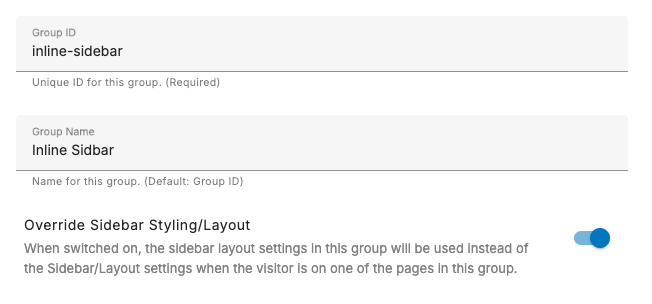
Create a page group that represents the page(s) where the sidebar is injected inline. (Settings > Indexing > Page Groups). Give it an appropriate name and id.
Enable “Override sidebar styling/layout” for that page group.
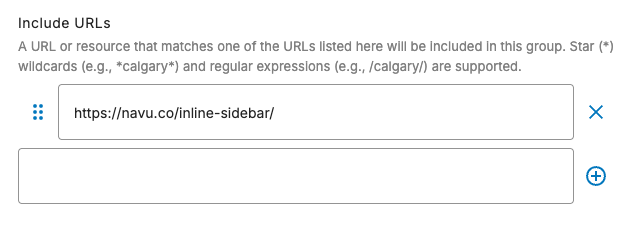
In the applicability rules, add URLs that match your page.
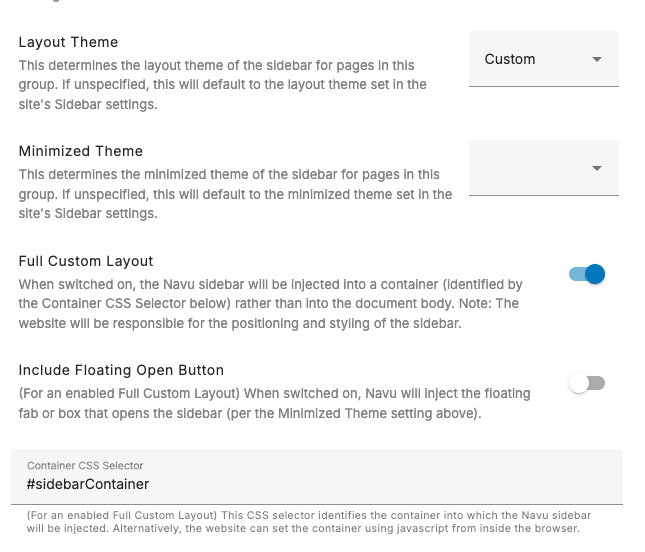
Go the Layout section of the page group and mark the layout to be “custom” and specify the CSS selector of the container you created.
Try it out
Once the portal is configured, your sidebar should load inline in your custom container on the page. We have a demo page with an inline sidebar: View the demo page.