Below is a description of the settings in the Navu Portal that control the appearance and functionality of the visual elements in the Navu sidebar.
Splash Screen
This is how the sidebar appears when visitors first land on your website.
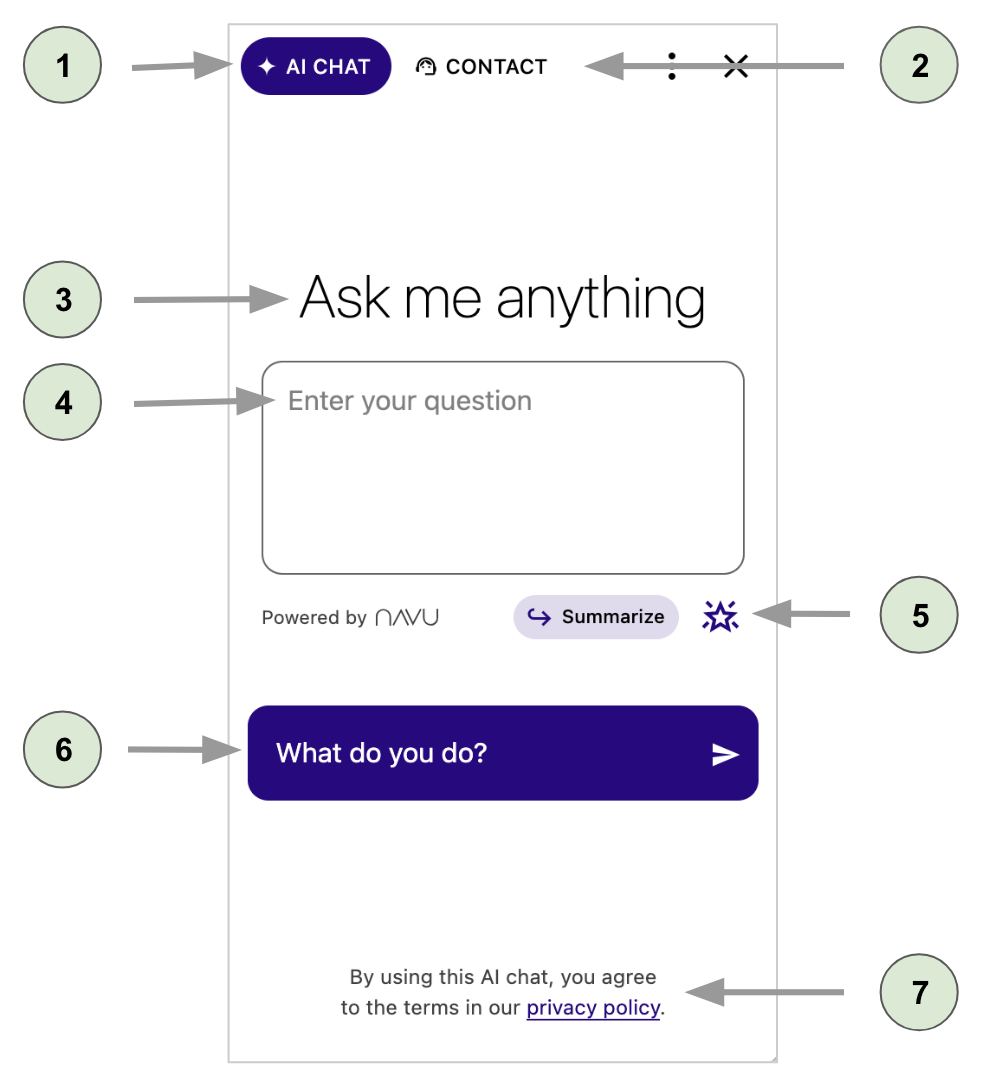
1. AI Chat Tab
Q. How do I change the label on the AI Chat tab?
A. Go to Settings → Sidebar → AI Chat → AI Chat Tab Title, and enter the text you would like on the AI chat tab. Default: AI Chat
2. Contact Tab
Q. How do I change the label on the Contact tab?
A. Go to Settings → Sidebar → Live Agent Chat → Contact Tab Title, and enter the text you would on the contact tab. Default: Contact
Q. How do I remove the Contact tab?
A. Go to Settings → Sidebar → Live Agent Chat → Invisible, and toggle the switch on. This action will also remove the AI Chat tab. However, it will not take effect if the contact tab has been changed to a button.
Q. How do I change the Contact tab to a button?
A. Go to Settings → Sidebar → Contact Button. Enter the text you would like on the button in the Contact Button Label text box and enter the URL to which the button will link in the Contact Button URL text box. Both text boxes must be filled to change the tab to a button.
Q. How do I change the link for the Contact button?
A. Go to Settings → Sidebar → Contact Button → Contact Button URL, and replace the existing URL with the new URL to which the contact button should link.
3. “Ask me anything”
This message appears on the splash screen and when history is cleared.
Q. How do I change the “Ask Me Anything” message?
A. Go to Settings → Sidebar → AI Chat → Ask Me Anything Message Override, and enter the message you would like. Default: Ask me anything
4. Placeholder Text
The placeholder text seen on the splash screen is configured separately from the placeholder text seen on the ongoing conversation screen (see 10 below).
Q. How do I change the placeholder text in the text box on the splash screen?
A. Go to Settings → Sidebar → AI Chat → Splash Text Entry Placeholder Override, and enter your placeholder text. Default: Enter your question
5. Prompts
Navu has a built-in set of prompts, and you can add custom prompts.
Q. How do I control the prompt that is visible below the textbox on the splash screen?
A. Go to Settings → Sidebar → AI Chat → Prompts. Any of the built-in prompts can be enabled or disabled. The first enabled prompt will be visible below the sidebar text box. If you add custom prompts, those prompts can be placed in any order, and the first custom prompt will appear below the sidebar text box instead of the first enabled built-in prompt. (To add custom prompts, go to Settings → Sidebar → AI Chat → Prompts → Custom Prompts.)
Q. How do I control the list of prompts in the menu that appears when I click on the AI icon just below the textbox?
A. Go to Settings → Sidebar → AI Chat → Prompts. Any of the built-in prompts can be enabled or disabled. All enabled built-in prompts will appear in the menu. If you add custom prompts, those prompts will also appear in the menu.
6. Suggested Question
The suggested question appears on the splash screen only.
Q. How do I override the suggested questions?
A. There are 2 steps. First, go to Settings → Sidebar → AI Chat → Suggested Questions, and enter your suggested questions. Next, go to Settings → Sidebar → AI Chat → Suggested Questions Only, and toggle the switch on. If you do not toggle on this switch, one of your suggested questions or one of the AI-generated questions will be randomly shown.
Q. How do I remove the suggested questions?
A. There are 2 steps. First, go to Settings → Sidebar → AI Chat → Suggested Questions. If there are any questions listed here, delete all of them. Next, go to Settings → Sidebar → AI Chat → Suggested Questions Only, and toggle the switch on. These two actions will remove the suggested questions.
7. Disclaimer
The privacy policy disclaimer is shown at the bottom of the splash screen. A brief disclaimer can be added after every response (see 11 below).
Q. How do I remove the privacy policy disclaimer?
A. The disclaimer cannot be removed, but it can be reworded. Go to Settings → Sidebar → AI Chat → Disclaimer Markdown, and enter your disclaimer. If you need to include a hyperlink, use markdown syntax. For example, [privacy page](https://acme.com/privacy).
Q. How do I set the privacy policy URL?
A. Go to Settings → General → Privacy Page URL, and enter the URL of the privacy policy.
Q. How do I change the text in the privacy policy disclaimer?
A. Go to Settings → Sidebar → AI Chat → Disclaimer Markdown. Go to Settings → Sidebar → AI Chat → Disclaimer Markdown, and enter your disclaimer. If you need to include a hyperlink, use markdown syntax. For example, [privacy page](https://acme.com/privacy).
Conversation Initiation Screen
Visitors will see this screen when the AI initiates a conversation with them.
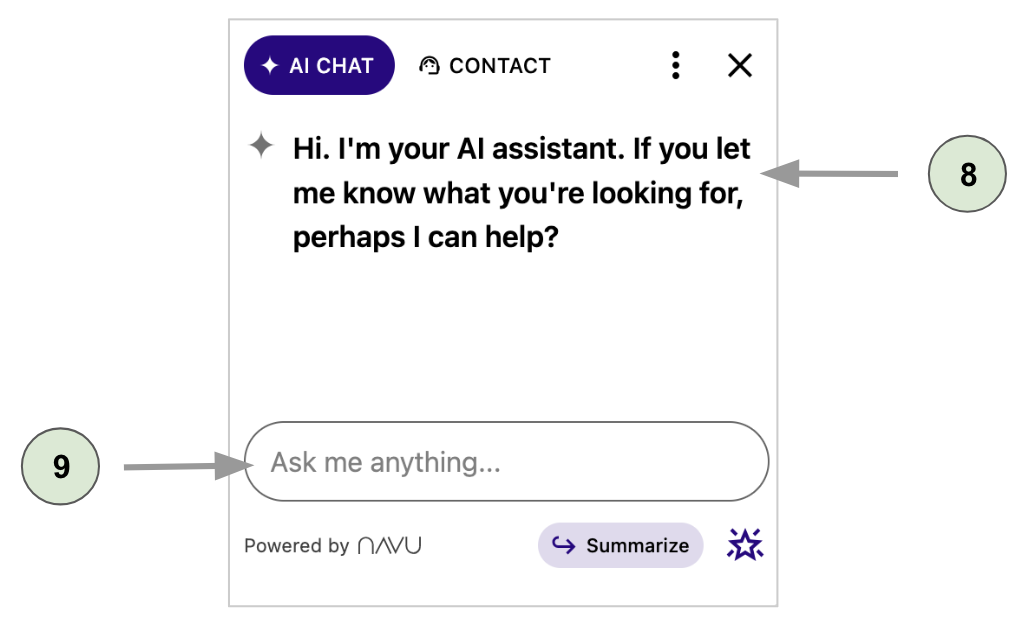
8. Conversation Initiation Message
This message is used to initiate a conversation with the visitor.
Q. How do I override the default conversation initiation message?
A. Go to Settings → Sidebar → AI Chat → Conversation Initiation Messages, and enter any number of conversation initiation messages. The AI will randomly select one of these messages. Note: if no messages are listed here, the AI will select from a set of default messages.
Q. How do I disable the conversation initiation text?
A. Go to Settings → Sidebar → AI Chat → Disable Initiate Conversation, and toggle the switch on.
9. Placeholder Text
This placeholder text seen during a conversation with the AI is configured separately from the placeholder text seen on the splash screen (see 4 above).
Q. How do I change the placeholder text in the text box?
A. Go to Settings → Sidebar → AI Chat → Normal Text Entry Placeholder Override, and enter your placeholder text. Default: Ask me anything…
Ongoing Conversation Screen
Visitors will see this screen when they are in conversation with the AI Chat.
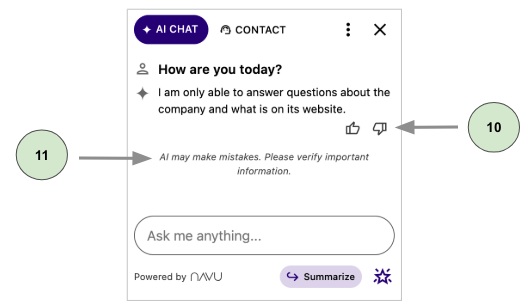
10. Reactions
Q. How do I remove the thumbs up/thumbs down reactions?
A. Go to Settings → Sidebar → AI Chat → Disable Message Reactions, and toggle the switch on.
11. Disclaimer
A brief disclaimer can be added after every response.
Q. How do I add or edit the disclaimer that follows every response?
A. Go to Settings → Sidebar → AI Chat → Brief Disclaimer, and add a disclaimer or edit the text already entered. Markdown syntax is not accepted.
Minimized Sidebar
The sidebar minimizes to a button that will reopen the sidebar when the button is clicked.
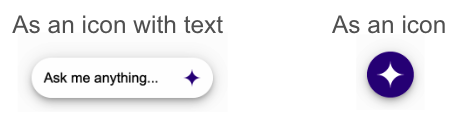
Q. How do I select whether I use an icon with text or just an icon for the open sidebar FAB?
A. Go to Settings → Sidebar → Layout → Minimized Theme. Select fab for the icon only, or select box for the icon with text.
Q. How do I upload an image to use for the icon?
A. Go to Settings → Sidebar → Icon. Click on Upload, and select the image you would like to use. The icon will appear only when the minimized theme is set to fab (see previous question).
Q. How do I change the text if I’m using the icon with text?
A. Go to Settings → Sidebar → Minimized Label, and enter the text you would like. Default: Ask me anything…
Add Your Logo or Icon
You can customize your sidebar with your logo or other images.
On the Splash Screen
A logo or other image can be placed above the “Ask me anything” message on the splash screen.
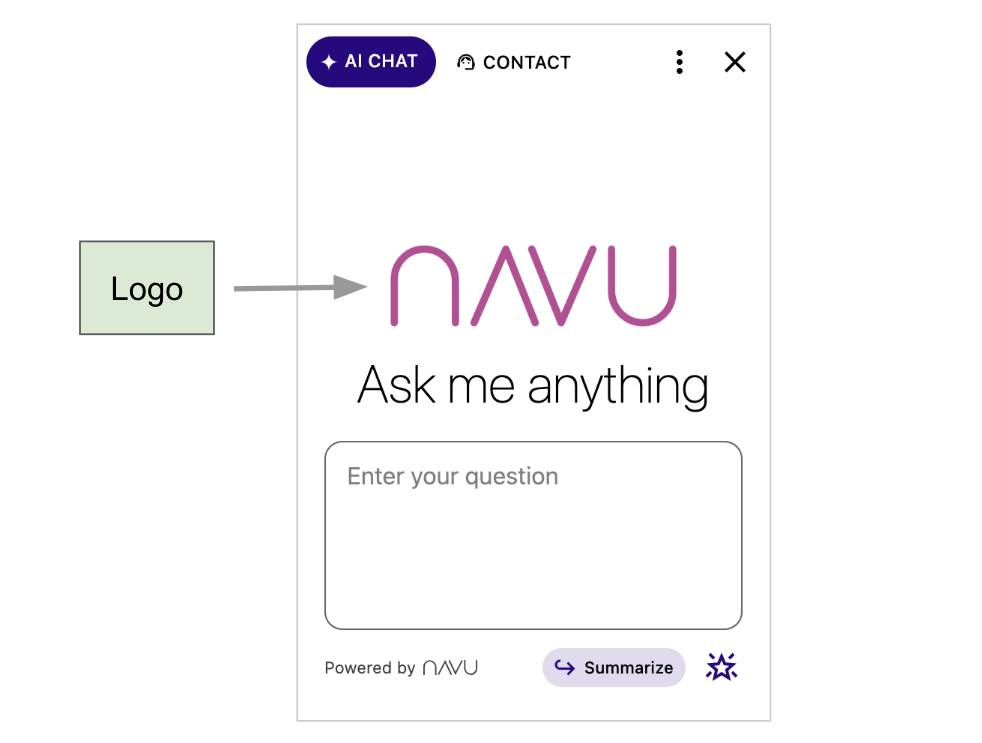
Q. How do I add a logo to the splash screen?
A. Your logo should have a transparent background. Go to Settings → Sidebar → AI Chat → Splash Logo, and upload your image file.
As the Icon for the AI
The default sparkle icon that represents the AI can be customized. The icon appears in conversations with the AI and on the minimized sidebar when it is an icon with text.
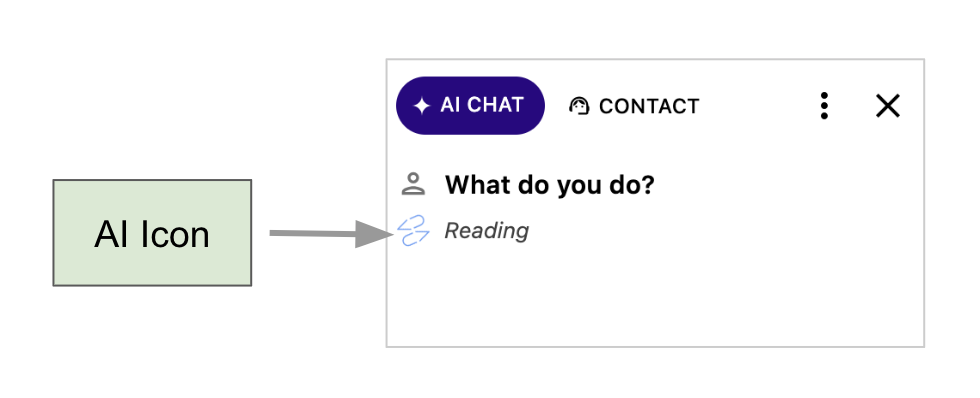
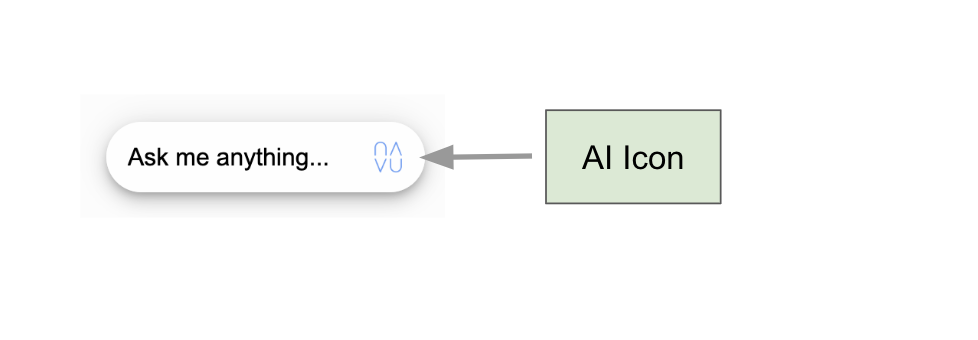
Q. How do I customize the AI icon?
A. The image for the AI icon should be square with a transparent background and at least 64×64 pixels. Go to Settings → Sidebar → AI Chat → AI Icon, and upload your image file.